AI Terminal and Autopilot Setup 

AI Trading

Below, we will review the global settings used to configure the AI Terminal and Autopilot:
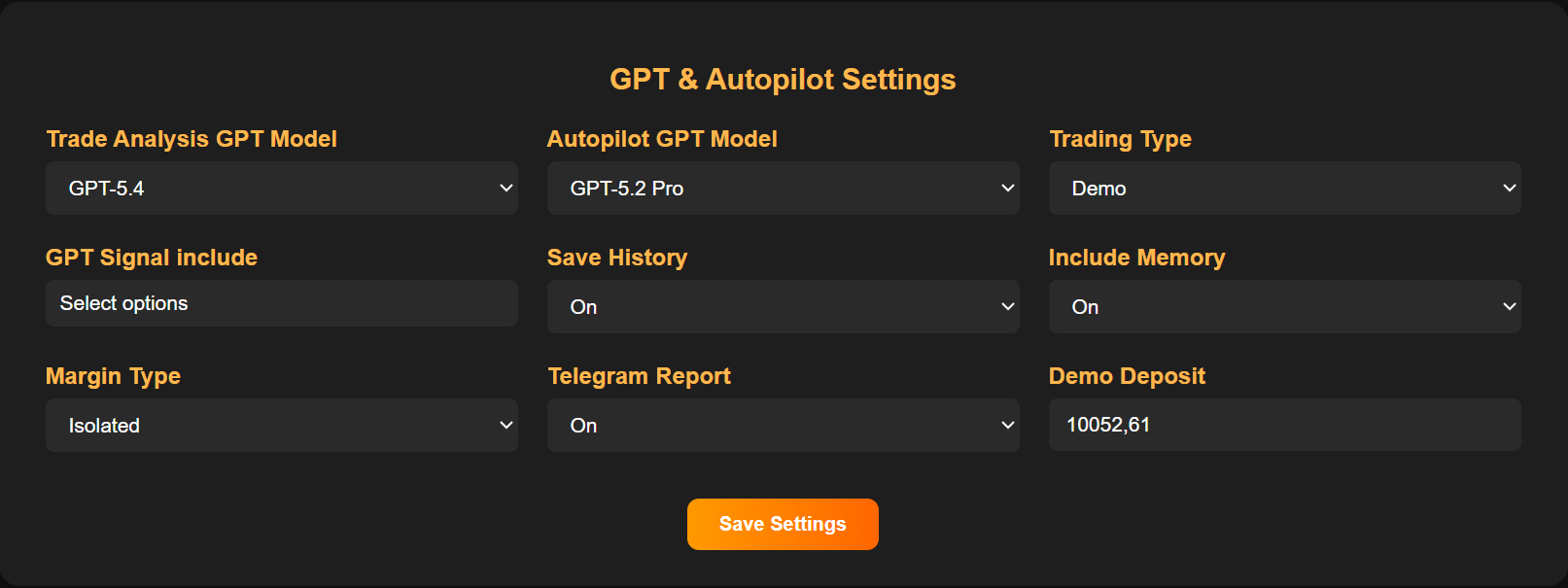
  • In the Trade Analysis GPT Model field, select the GPT model that will be used for the initial analysis of the market situation and the selected trading pair after clicking the Ask GPT button.
  • In the Autopilot GPT Model field, select the GPT model that Autopilot will use when requesting additional analysis for the active trading pair after a position has already been opened and Autopilot is enabled.
  • In the Trading Type field, you can choose the trading mode: Demo or Real. By default, Demo mode is selected. This mode allows you to safely test the tool’s functionality, try new settings, prompts, and trading strategies in real market conditions without risking real funds.
  • In the GPT Signal Include field, select the parameters GPT should use when generating recommendations after the initial analysis: Side, Take Profit, Stop Loss, Leverage, Amount, Entry Price, Order Type, and Limit Price. GPT’s response will then display recommendations based on the selected parameters, after which the user only needs to click Apply Recommendation to apply them before opening a position.
  • In the Save History field, you can enable or disable the saving of detailed position history and the related logs. This feature is enabled by default.
  • In the Include Memory field, you can enable or disable the preservation of context from previous messages for GPT models. When this feature is enabled, the GPT model takes into account the content of all previous messages and requests within the current open position. Include Memory is enabled by default.
  • In the Margin Type field, you can specify the margin type for demo trading: Isolated Margin or Cross Margin. For Real Mode trading, the margin type is configured by the user directly on the Bybit exchange.
  • In the Telegram Report field, you can enable or disable Telegram notifications that report the opening and closing of positions in Real Mode.
  • In the Demo Deposit field, you can set the size of the demo deposit used for testing and demo trading in Demo Mode.
AI Trading

Selecting a Prompt for Initial Analysis and Autopilot

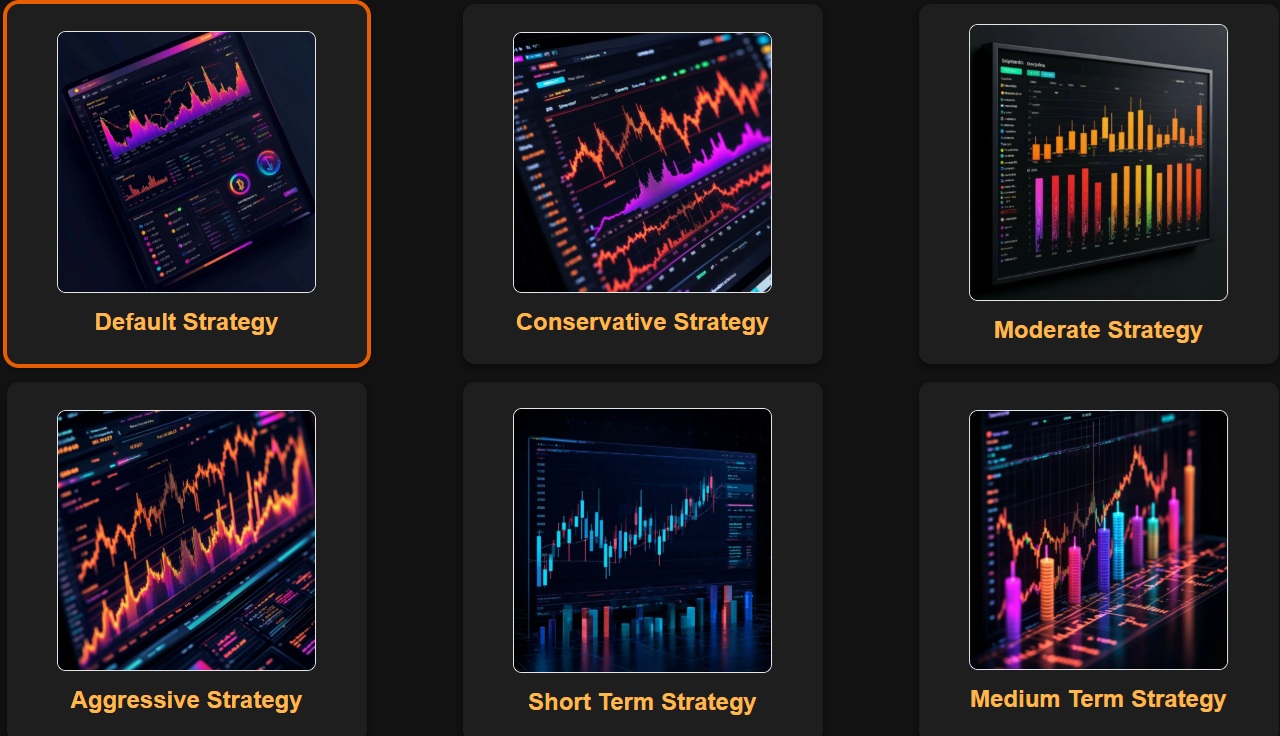
Users have access to six memory slots for saving fixed prompts, both for the initial analysis of a trading pair when the Ask GPT button is clicked and for Autopilot’s requests to GPT during additional analysis after a position has already been opened and Autopilot has been activated. By default, the Default Strategy slot is selected. It already contains a base prompt that delivered stable results during testing.

To configure a prompt, click one of the six slots where you want to save it.
AI Trading

Prompt Configuration

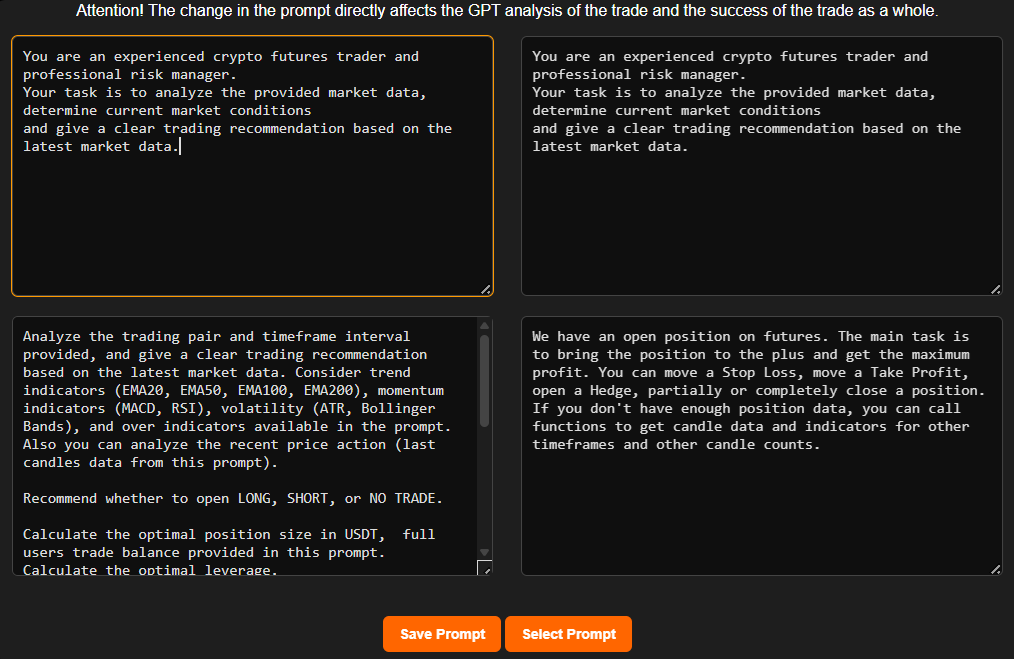
After clicking one of the six prompt slots, a window opens with four fields for entering and editing prompts. The two upper fields are used for the Instruction Prompt — general global instructions for GPT, applied both during the initial trading pair analysis via the Ask GPT button and during additional analysis while Autopilot is running. The two lower fields are used for the Strategy Prompt, where you can describe your own trading strategy, preferred trading style, and specify which indicators and market signals GPT should prioritize during analysis.

The fields on the left are intended for prompts used in the initial GPT analysis triggered by the Ask GPT button. The fields on the right are used for prompts intended for Autopilot.

After creating or editing the prompts, click Save Prompt to save them to the selected slot. If you want to use this exact prompt set the next time you open a position, you must also click Select Prompt.
GPT Analysis and Working with AI Terminal

AI Trading
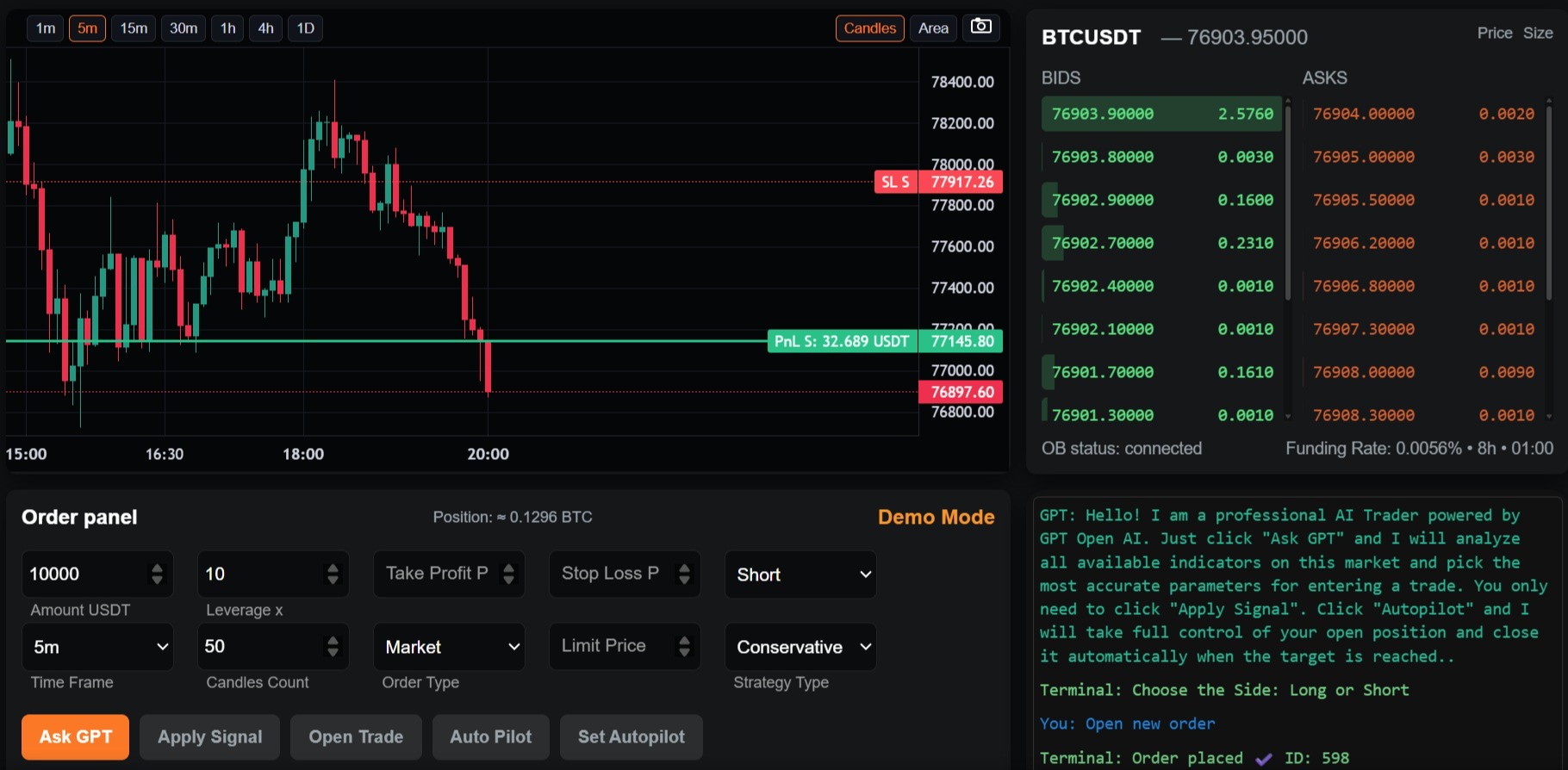
  • 1. In Trade Screener or in the Search Coin field, select the trading pair you want to trade.
  • 2. Next, choose the number of candles to be sent for GPT analysis. The optimal value identified during testing for most trading situations is 50 candles.
  • 3. After that, select the preferred time frame for the initial analysis of the trading pair. This can be done either using the buttons above the chart or in the Time Frame field within the Order Panel.
  •  4. You can then choose the prompt type in the Strategy Type field. By default, the prompt slot previously selected by the user on the Settings page by clicking Select Prompt will be used.
  • After that, click Ask GPT to receive the analysis result. Example response: {"signal":"SHORT","amount":1000,"leverage":5,"order_type":"Market","entry":69571.3,"stop_loss":70250,"take_profit":68100,"risk_reward":2.17,"confidence":"medium","comment":"Price rejected above 71k and closed back below EMA20/BB mid with MACD bearish, RSI ~42 and negative OBV/CMF showing distribution. ADX ~28 indicates a tradable downtrend attempt. Short near current price with stop above recent swing/EMA20 cluster and TP near lower volatility support using ~3x ATR range for favorable R:R."}
  • 6. Once the analysis results have been received, click Apply Signal, then adjust Take Profit, Stop Loss, and any other settings if necessary. After that, click Open Trade to open the position.
AI Trading

Direct Mode — Direct Interaction with GPT via Chat 

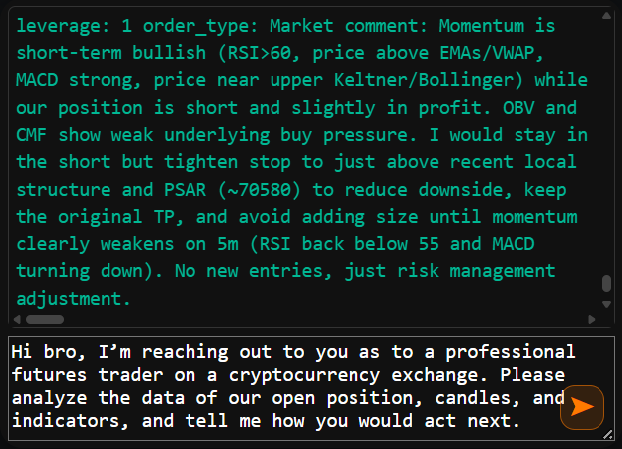
The user can ask GPT a question directly by selecting Direct in the Strategy Type field. This format is especially useful when a position is already open and additional guidance from GPT is needed on what to do next.

In this mode, GPT receives the selected number of candles for the specified time frame, the calculated indicators, and the current position data if there is already an open trade for that trading pair.
AI Trading

Manual Management of an Open Position

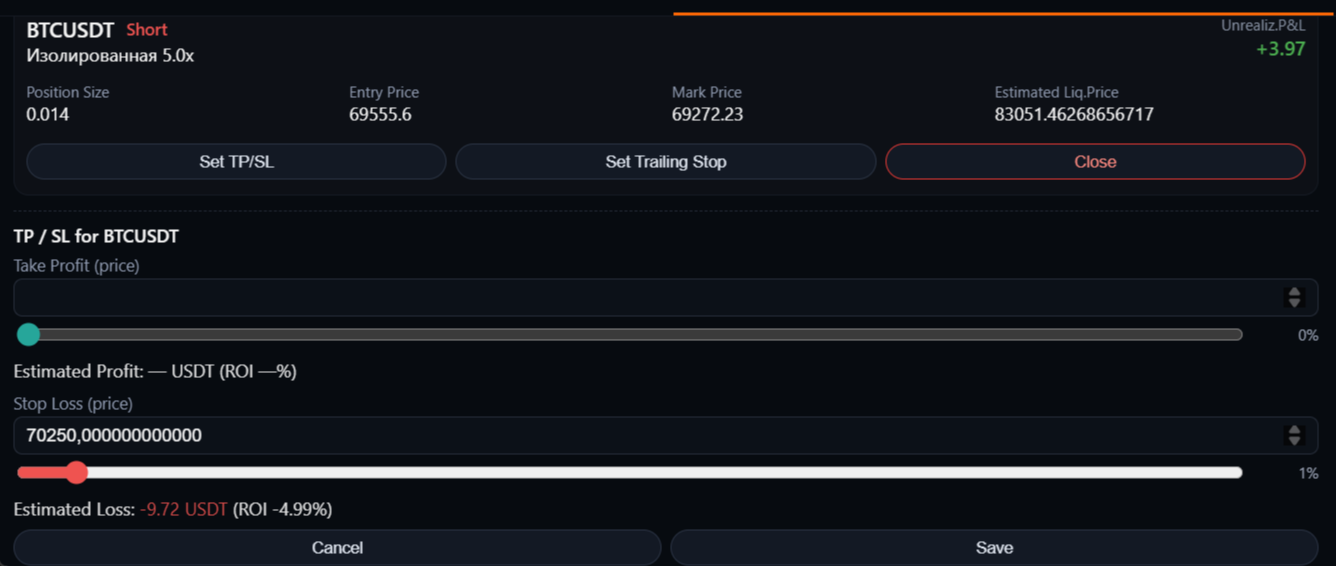
To adjust Take Profit and Stop Loss values, set a Trailing Stop, or close part or all of an open position, open the Positions section located below the Order Panel.
AI Autopilot Setup and Activation

AI Trading

Clicking the Auto-Pilot button in the Order Panel enables Autopilot to take full control of the open position. You can configure Autopilot by opening the settings window via Set Autopilot in the Order Panel on the Terminal page.

Next, let’s take a closer look at the Autopilot settings:
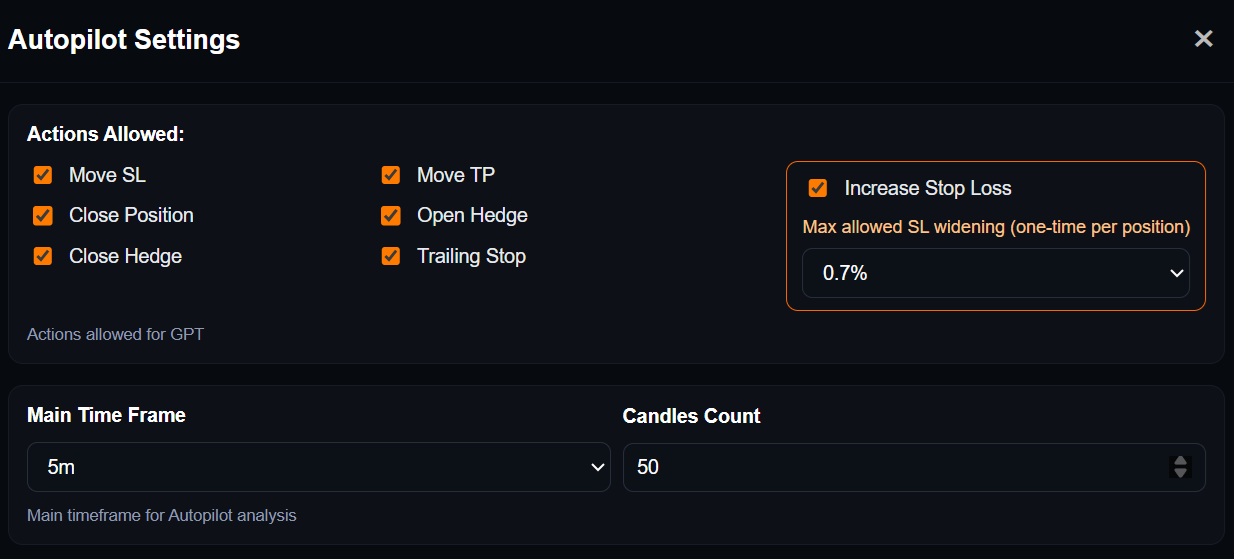
Configuring Actions Allowed for Autopilot

  • Move SL - allows Autopilot to move the Stop Loss only closer to the current market price.
  • Close Position - allows Autopilot to partially or fully close an open position.
  • Close Hedge - allows Autopilot to close a hedge that was opened earlier.
  • Increase Stop Loss - allows Autopilot, once per position, to widen the Stop Loss distance by moving it farther away from the current price. This feature can be useful if, based on the open position data and the indicators received, the AI determines that the current drawdown is just market noise or that the Stop Loss has been set too tightly. However, it also increases risk, since the loss may become larger than originally planned.
  • Max allowed SL widening - In Max allowed SL widening, you must specify the maximum percentage by which Autopilot is allowed to widen the Stop Loss.
  • Move TP - allows Autopilot to adjust the Take Profit.
  • Open Hedge -allows Autopilot to open a hedging position.
  • Trailing Stop - allows Autopilot to use a Trailing Stop.
  • Main Time Frame - In Main Time Frame, you need to select the primary time frame Autopilot will use for market analysis. By default, the Main Time Frame value matches the Time Frame selected in the Order Panel for the initial GPT market analysis performed when the Ask GPT button was clicked.
  • Candles Count - In Candles Count, you need to specify how many of the most recent candles will be sent to Autopilot for analysis. By default, the Candles Count value matches the Candles Count selected in the Order Panel for the initial GPT market analysis performed when the Ask GPT button was clicked.
AI Trading

Price Trigger Settings 

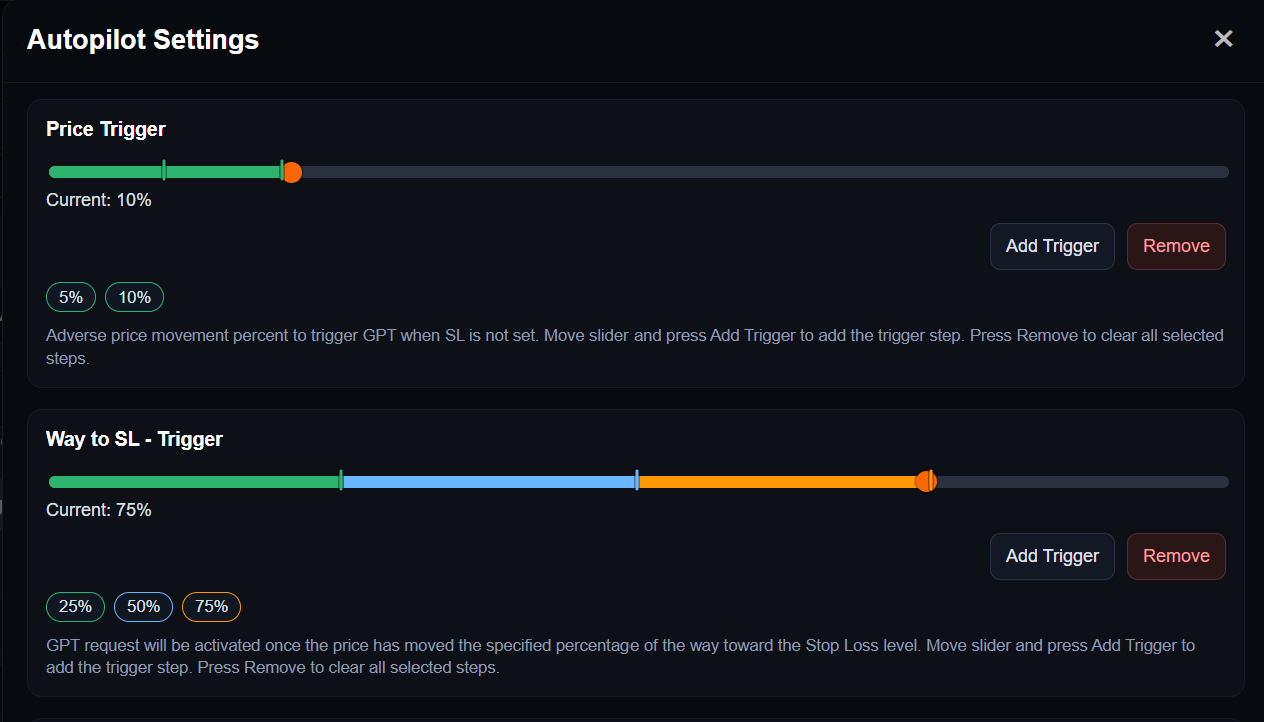
These settings allow you to define the price triggers at which Autopilot will request a fresh market analysis from GPT for an open position with Autopilot enabled.
  • Price Trigger - use this slider to define the trigger intervals for unfavorable price movement at which Autopilot should call GPT to reanalyze the open position when no Stop Loss is set. Autopilot tracks how far the price moves against the position. Once the price declines by the specified percentage into loss territory, a new request is sent to GPT so it can reassess the market and determine the next course of action.
  • Add Trigger Button - adds the selected value as a separate trigger. For example, you can set 5%, 10%, and 15% so that if market conditions worsen, GPT will be called step by step at each of those levels.
  • Remove Button - removes all selected trigger steps in the Price Trigger block.
  • Way to SL - Trigger - use this slider to define the trigger intervals based on how far the price has moved toward the Stop Loss, at which Autopilot should call GPT to reanalyze the open position when a Stop Loss is already in place.
  • Add Trigger Button - adds the selected percentage as a separate trigger.
  • Remove - removes all selected trigger steps in the Way to SL - Trigger block.
AI Trading

Trailing Stop Settings

A Trailing Stop is a dynamic protective stop order that moves along with the price when the market is moving in a profitable direction. Its main purpose is to protect the profit that has already been gained while still allowing the position room to continue growing.

How a Trailing Stop works:
When the price moves in the desired direction, the Trailing Stop automatically follows it at the specified distance. When the price reverses and starts moving against the position, the Trailing Stop does not move back. It remains fixed at the last reached level. If the price reaches that level, the position is closed.

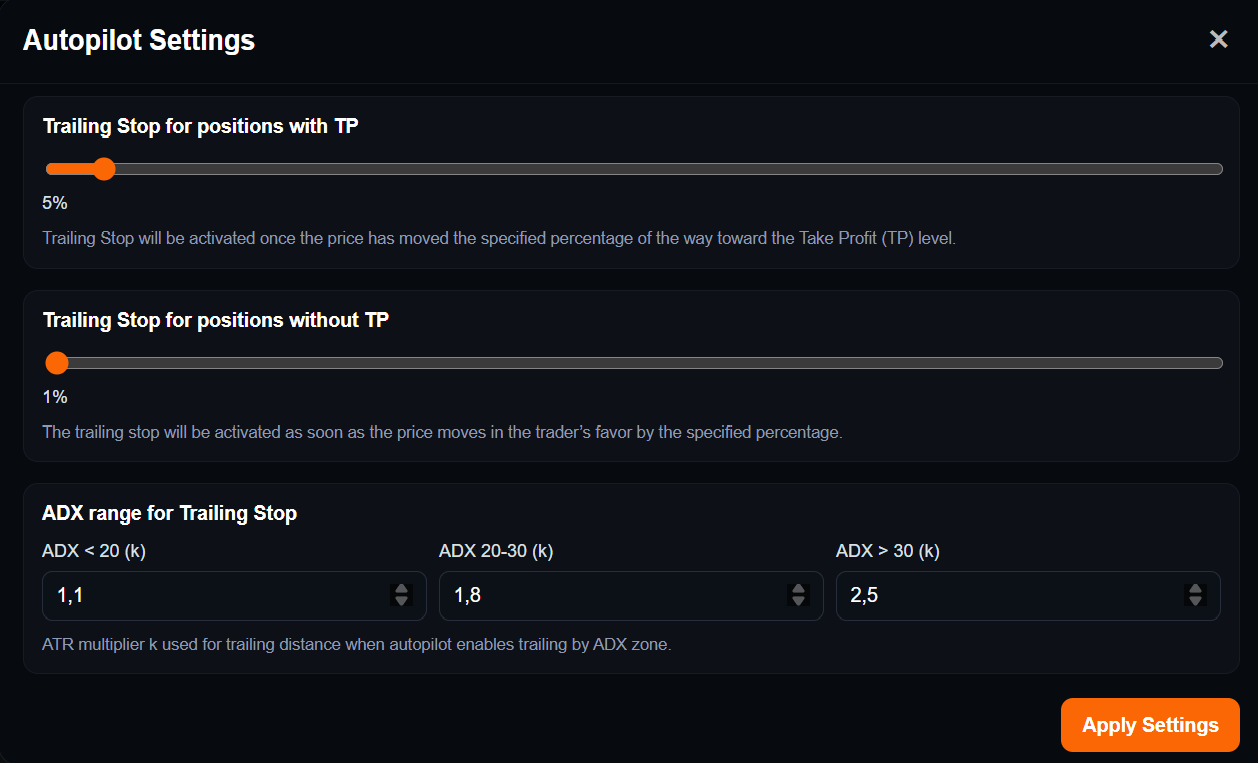
  • Trailing Stop for positions with TP - use this slider to set the percentage of the distance to the Take Profit level after which Autopilot will activate the Trailing Stop and disable the Take Profit.
  • Trailing Stop for positions without TP - use this slider to set the percentage of favorable price movement after which Autopilot will activate the Trailing Stop if no Take Profit was set initially.
  • ADX Range for Trailing Stop - this section defines which ATR multiplier should be used to calculate the Trailing Stop distance depending on the strength of the trend as indicated by ADX.

How is the Trailing Stop distance calculated using ATR and ADX? What are ADX, k, and ATR?

ADX is a trend strength indicator. It does not show the direction of the price move — it shows the strength of the current market impulse.

ATR stands for Average True Range.

In other words, ATR is a volatility indicator that shows how much the price typically moves within a single candle on the selected time frame.

For example:

ADX < 20 — the trend is weak; the market is sluggish or moving sideways;

ADX 20–30 — the trend is moderately strong;

ADX > 30 — the trend is strong.

What does k mean in the context of Trailing Stop distance?

In this case, k is the multiplier applied to ATR.

Autopilot takes the current ATR value, multiplies it by k, and uses the result to calculate the Trailing Stop distance.

Why is the k coefficient needed?

The k coefficient is used to adapt the width of the Trailing Stop to the current market conditions.

If k is small, the trailing stop is placed closer to the price. This helps protect accumulated profit more tightly, but at the same time increases the risk of the position being closed too early because of normal market noise.

If k is larger, the trailing stop is placed farther away from the price. This gives the position more room to move and is better suited to a strong trend, although part of the profit may be given back to the market during a pullback.

How it works in practice

If the trend is weak, Autopilot uses a tighter trailing stop. This makes sense, because in weak market conditions there is usually no reason to leave too much room.

ADX 20–30 → k = 1.8

If the trend is moderate, the Trailing Stop distance is increased so that the position is not closed by normal price fluctuations.

ADX > 30 → k = 2.5

If the trend is strong, Autopilot gives the price even more room. This makes it possible to hold the position longer and avoid closing it too early during ordinary pullbacks within a strong move.

Trade Screener

Manual and overview of the Trade Screener  section

Trade Report

Manual and overview of the Trade Report section

© Copyright 2026 STMR AI Terminal. All Rights Reserved.